The most useful templates combine scheduling information with tracking fields. Instead of simply showing that an employee is assigned on Monday, a stronger template can show the employee’s role, start time, finish time, break period, total scheduled hours, actual hours, time off, and notes. This makes the document useful not only for planning but also for comparing planned work with what actually happened.
Spreadsheet-based scheduling is especially attractive because employees and managers may already be familiar with Excel or Google Sheets. A template can provide the structure while formulas, dropdowns, conditional formatting, and summary areas handle repetitive calculations. Microsoft also provides customizable Excel calendar templates, while scheduling resources from established template providers demonstrate weekly, daily, hourly, and shift-based approaches. :contentReference[oaicite:0]{index=0}
The key is to select a format that matches the way the organization actually operates. A five-day office schedule does not need the same structure as a 24-hour operation, and a team that only needs planned shifts does not necessarily need a complex timekeeping system. The best tracking employees schedule template is therefore not the one with the most columns; it is the one that captures the information required to make accurate decisions without creating unnecessary administrative work.
This guide explains how to design, choose, customize, and maintain an employee scheduling and tracking workbook. It covers spreadsheet formats, time tracking, shift planning, availability, attendance, overtime review, reporting, practical examples, common mistakes, and a repeatable workflow that can be adapted as a team grows.

What Is a Tracking Employees Schedule Template?
A tracking employees schedule template is a reusable document for planning and monitoring employee work schedules. At its simplest, it contains employee names on one axis and working days on another. More advanced versions add shift times, job roles, locations, breaks, scheduled hours, actual hours, leave, and other operational details.
The distinction between a schedule and a time record is important. A schedule represents what an employee is expected to work. A time record represents what the employee actually worked. Combining the two can be valuable because managers can compare planned hours with actual hours and investigate meaningful differences instead of relying on memory.
A good template also creates a standard operating pattern. Every week can use the same columns, naming conventions, shift codes, and calculations. This consistency makes historical records easier to compare and reduces the risk of one week’s schedule being structured differently from the next.
For example, a retail manager might record an employee as scheduled from 9:00 AM to 5:00 PM on Monday, assigned to the sales floor. The actual time record could later show an 8:57 AM clock-in and a 5:12 PM clock-out. The difference may be insignificant, or it may indicate a recurring pattern that deserves attention. The template provides the structure for making that comparison.
Tracking also becomes more useful when the schedule includes operational context. If the same employee is scheduled as a cashier on Monday, stockroom support on Tuesday, and closing supervisor on Friday, the manager can see not just when the employee works but how staffing is distributed across responsibilities.

Why Employee Schedule Tracking Matters
Employee schedules affect staffing coverage, customer service, workload distribution, labor costs, communication, and employee expectations. When schedules are unclear, managers can spend considerable time answering questions that should already be answered by the schedule itself.
A centralized template gives employees a single reference point. Instead of checking several messages for different shift changes, the team can use the current schedule version. This becomes increasingly important when shifts change frequently, when several supervisors share scheduling responsibilities, or when employees work across multiple locations.
Tracking planned hours also helps managers identify potential overstaffing and understaffing before a shift begins. If one day has too many people assigned while another has too few, the imbalance is visible in the schedule. A total-hours column can also make unusually high or low weekly allocations easier to identify.
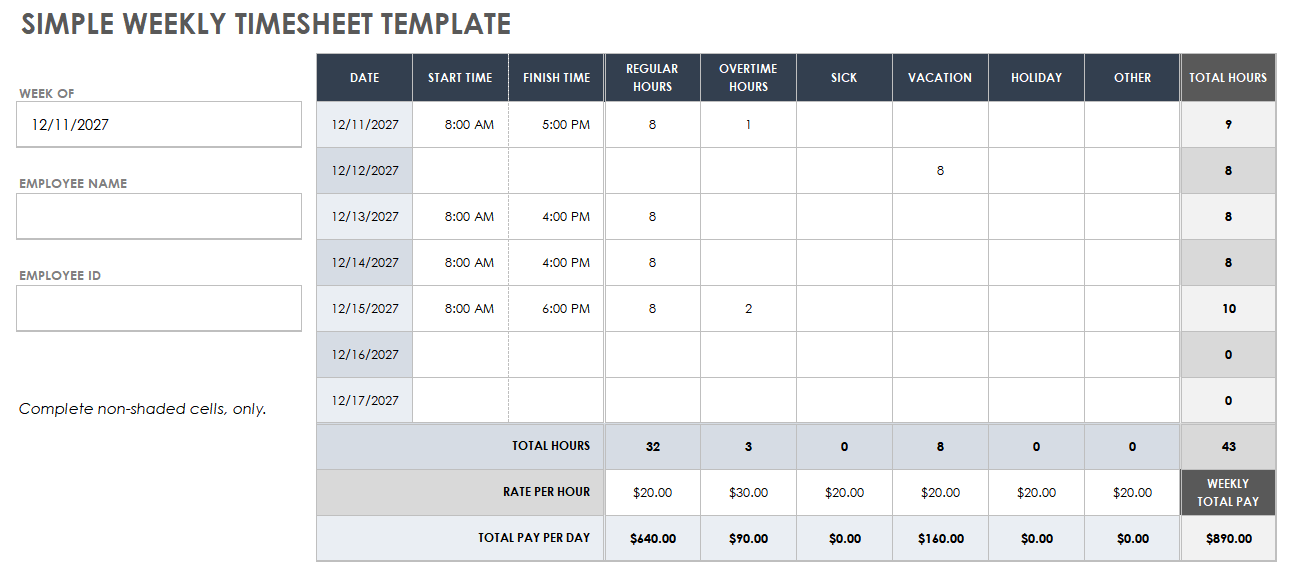
Time tracking adds another layer of visibility. A spreadsheet can record start time, end time, breaks, and calculated hours. Smartsheet’s timesheet guidance, for example, describes templates that calculate daily and weekly hours and can include regular, overtime, leave, and holiday categories. :contentReference[oaicite:1]{index=1}
The broader benefit is better operational decision-making. A schedule should not exist only to tell people where to be. When designed carefully, it becomes a small operational database that helps answer questions such as whether coverage is adequate, whether shifts are balanced, whether overtime is developing, and whether staffing patterns need to change.

Key Components of an Effective Template
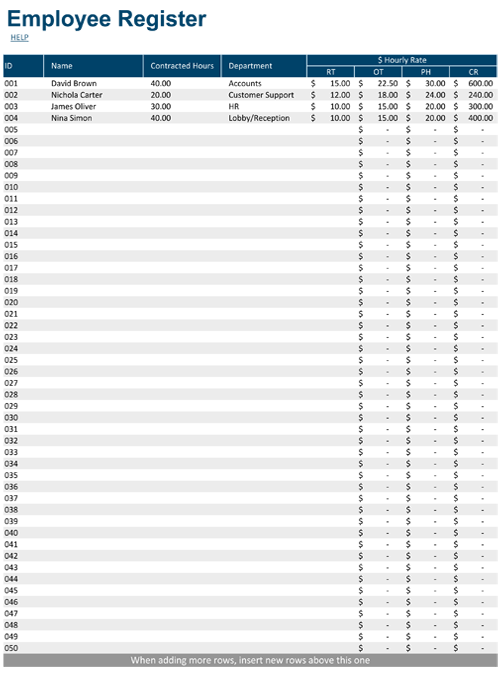
The first component is employee identification. Each row should clearly identify the employee, and larger teams may also need an employee ID, department, location, job title, or employment type. These fields reduce ambiguity when several people have similar names or when employees move between roles.
The second component is the scheduling period. Most teams begin with a weekly schedule because seven days provide enough operational visibility without making the sheet unnecessarily wide. Other teams may need daily, biweekly, monthly, or rotating schedules. The period should match how frequently the organization plans and communicates work.
The third component is shift information. At minimum, the schedule should identify the shift or start and end time. Teams with multiple roles can also include role, work area, location, or shift code. A consistent notation such as “09:00–17:00” is easier to interpret than a mixture of abbreviations and informal descriptions.
The fourth component is hour tracking. Scheduled hours can be calculated from start and finish times after subtracting unpaid breaks. If actual time is collected separately, an additional actual-hours field can support variance analysis. This prevents managers from treating planned hours and worked hours as if they were automatically identical.
The fifth component is status information. Useful status values include working, off, vacation, sick leave, training, holiday, or another approved category. Dropdown lists are preferable to free-form text because they keep the workbook consistent and make filtering easier.
Choosing the Right Schedule Format
A weekly format is usually the easiest starting point for a small team. Employees appear in rows, days appear across columns, and each cell contains the shift. This provides a compact overview that managers can review quickly before publishing.
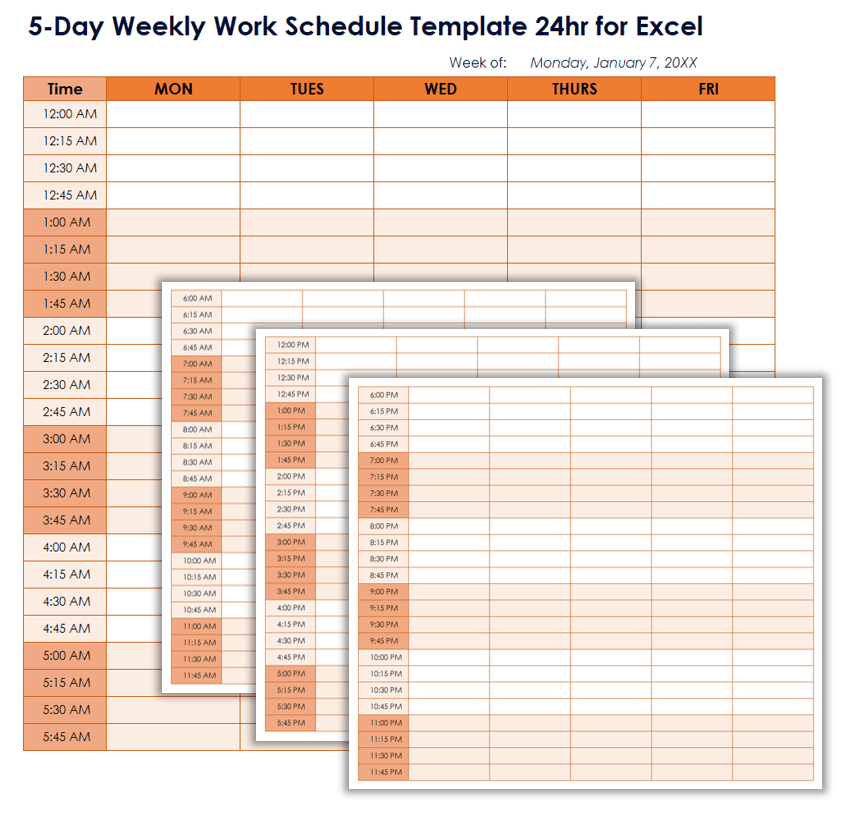
A daily schedule is more appropriate when work changes hour by hour. Event teams, reception desks, operations centers, and businesses with frequent appointments may need a detailed hourly layout. A daily format can show exactly when tasks, shifts, breaks, and coverage periods occur.
A biweekly schedule is useful when the organization plans around a two-week payroll cycle or when alternating shifts make a seven-day view inconvenient. Microsoft describes an Excel-based approach for importing schedules into Teams Shifts, including separate areas for shifts, time off, open shifts, day notes, and team members. :contentReference[oaicite:2]{index=2}
A monthly schedule is valuable for longer planning horizons. It can show recurring patterns, leave, training, rotations, and major staffing requirements. However, monthly layouts should avoid excessive detail because a large grid can become difficult to read when every day contains several separate time fields.
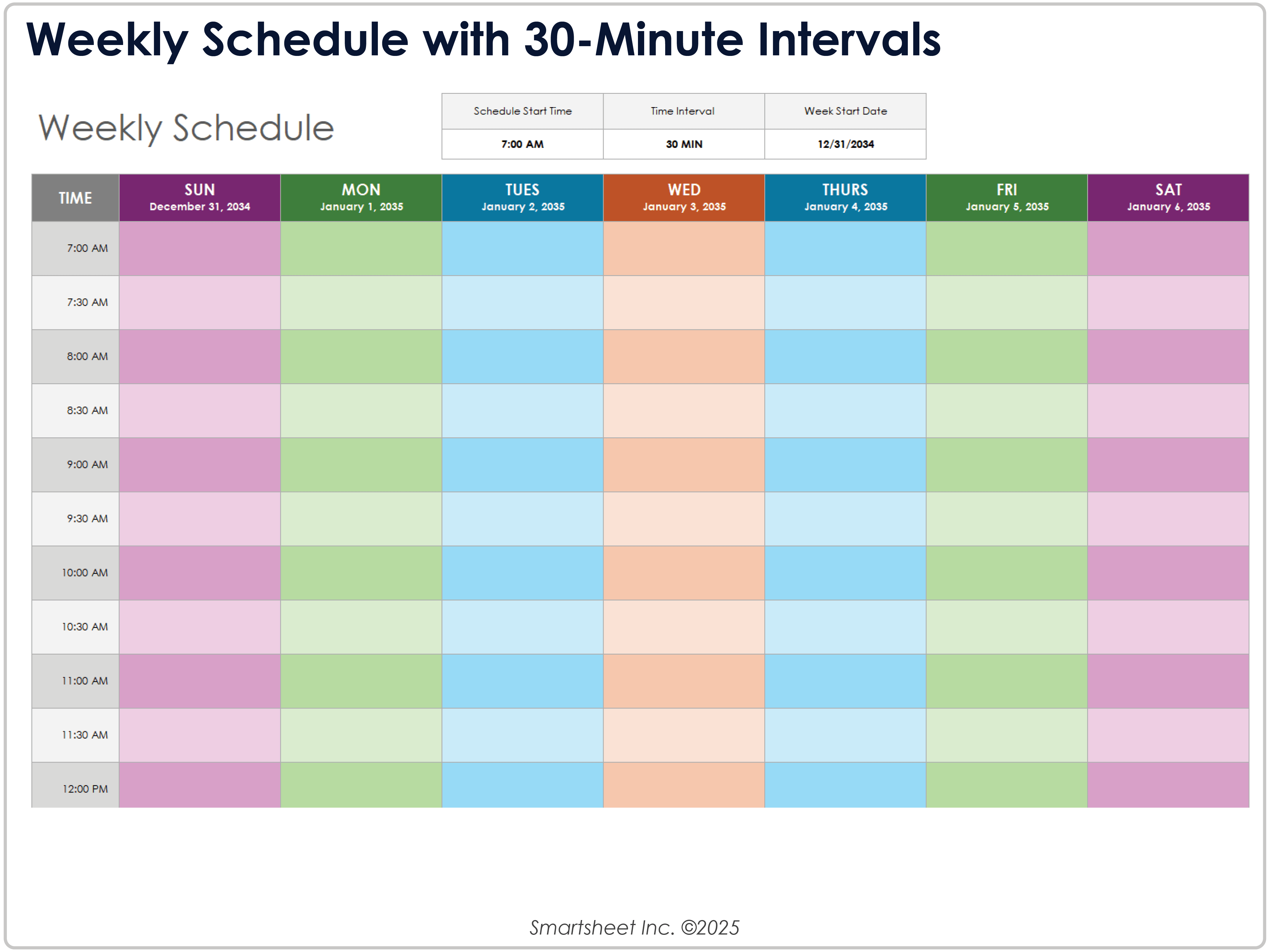
Hourly schedules are best when exact coverage matters. Smartsheet’s collection of Excel hourly schedules includes employee-oriented layouts that break working time into smaller intervals, which can help managers plan coverage during specific parts of the day. :contentReference[oaicite:3]{index=3}
Tracking Employees Schedule Template Google Sheets
A shared spreadsheet can be useful when several managers need to update the same schedule. Google Sheets allows a central schedule to be accessed from different devices, which reduces the need to send a new spreadsheet attachment every time a minor change occurs.
The strongest shared-sheet setup separates editing responsibilities from viewing responsibilities. Managers may have permission to change schedules, while most employees can receive view access. This reduces accidental changes and makes the published schedule easier to protect.
A practical Google Sheets workbook can contain separate tabs for employee information, availability, weekly schedule, actual hours, time off, and summary reporting. Keeping these areas separated makes the workbook easier to navigate while preserving the ability to connect information with formulas.
Google Sheets also supports timeline views for appropriate Workspace editions. Google’s documentation explains that timeline view can be used for schedules and other date-based planning, provided the underlying data contains appropriate date fields. :contentReference[oaicite:4]{index=4}
For teams that need shared editing, a tracking employees schedule template google sheets workflow should prioritize clear permissions, consistent data entry, a protected formula area, and a simple published view. The objective is not to build the most complicated workbook possible but to make the current schedule obvious and trustworthy.
Tracking Employees Schedule Template Excel
Excel remains a strong choice when managers need detailed formulas, offline access, printing, custom calculations, or integration with existing workbooks. It is especially practical for organizations that already use Microsoft 365 and have established spreadsheet procedures.
A tracking employees schedule template excel workbook can use one worksheet for employee records, another for schedules, another for time tracking, and a summary sheet for management review. This structure keeps raw data separate from reporting and makes it easier to maintain formulas.
Excel also works well for schedules that need printable versions. A manager can design a landscape weekly schedule, set appropriate print areas, repeat header rows, and create a version suitable for a staff noticeboard. Microsoft notes that Excel calendar templates can be customized for different layouts, workweeks, notes, and schedule tracking. :contentReference[oaicite:5]{index=5}
Another advantage is formula flexibility. A schedule can calculate total scheduled hours, compare planned and actual hours, identify potential overtime, and summarize staffing by department. However, formulas should be kept understandable so another manager can maintain the workbook without reverse-engineering a complicated system.
For a small organization, a clean workbook with a weekly schedule, employee list, hours calculation, and time-off area is often enough. More sophisticated features should be added only when they solve a real operational problem.
Tracking Employees Schedule Template Free: What to Look For
A free template can be an excellent starting point, but “free” should not be the only selection criterion. The template should be understandable, editable, relevant to the team’s schedule, and compatible with the software the team already uses.
Look first at the structure. A useful free template should make employee names, workdays, shifts, and totals easy to identify. If the template has many decorative elements but little usable space, it may create more work than it saves.
Next, inspect the calculation logic. If the workbook claims to calculate hours, verify how it handles breaks and overnight shifts before relying on it for payroll-related decisions. A formula that works for 8:00 AM to 4:00 PM may not work correctly for 10:00 PM to 6:00 AM.
Also consider editability. A free template is more useful when managers can add employees, rename roles, change working days, adjust shift lengths, and modify categories without breaking the workbook.
Finally, confirm how the template is distributed. Some resources provide a workbook directly, while others provide a Google Sheets copy, PDF, or printable version. Smartsheet, for example, publishes schedule resources in Excel and Google Sheets formats, while other providers offer combined workbooks or spreadsheet-based downloads. :contentReference[oaicite:6]{index=6}
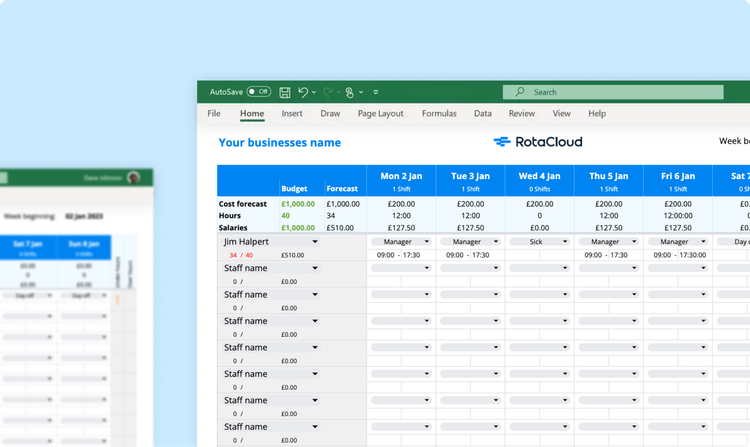
Tracking Employees Schedule Template Free Download: How to Evaluate a Download
Before downloading any template, determine what you actually need to track. A simple weekly schedule might require only employee names, roles, dates, and shift times. A timekeeping workbook may require clock-in, clock-out, breaks, total hours, overtime, and approval fields.
Check whether the file format matches your environment. An Excel workbook may be preferable when formulas and offline editing matter, while a Google Sheets version can be more convenient when several managers need to collaborate.
Inspect the workbook before entering real information. Review every worksheet, identify formulas, check whether sample data exists, and determine whether any hidden sheets or macros are included. Never assume that a template is suitable for payroll or legal recordkeeping simply because it contains hour calculations.
Create a clean master copy before customization. Keep the original untouched and work from a duplicate. This gives the organization a recovery point if formatting or formulas are accidentally changed.
A tracking employees schedule template free download can save significant setup time when it provides a sensible structure, but the downloaded file should still be tested with realistic examples. Run several ordinary shifts, a day off, a vacation entry, a long shift, and any other unusual situation your business regularly encounters before making the workbook part of the normal workflow.

Tracking Employees Schedule Template Excel Free
An Excel template can be customized for teams that have different departments, roles, locations, and shift patterns. Start by creating a master employee table containing the information that should remain consistent from week to week.
The weekly schedule can then reference that employee list instead of requiring names to be typed repeatedly. This reduces spelling inconsistencies and makes the workbook easier to update when an employee changes department or role.
Dropdowns are particularly useful for shift types. Instead of manually typing “Morning,” “Morn,” “AM Shift,” and “Opening,” define a standard set of options. Consistent labels make summaries and filters much more reliable.
Conditional formatting can also highlight useful exceptions. For example, a workbook might flag unusually high scheduled hours, missing shift times, uncovered roles, or overlapping assignments. The purpose is not to make the sheet colorful; it is to draw attention to conditions that require action.
When using a tracking employees schedule template excel free resource, test every formula after adding rows or changing the layout. Some templates use fixed ranges, meaning a formula that originally covered 20 employees may not automatically include employee 21 unless the range has been designed appropriately.
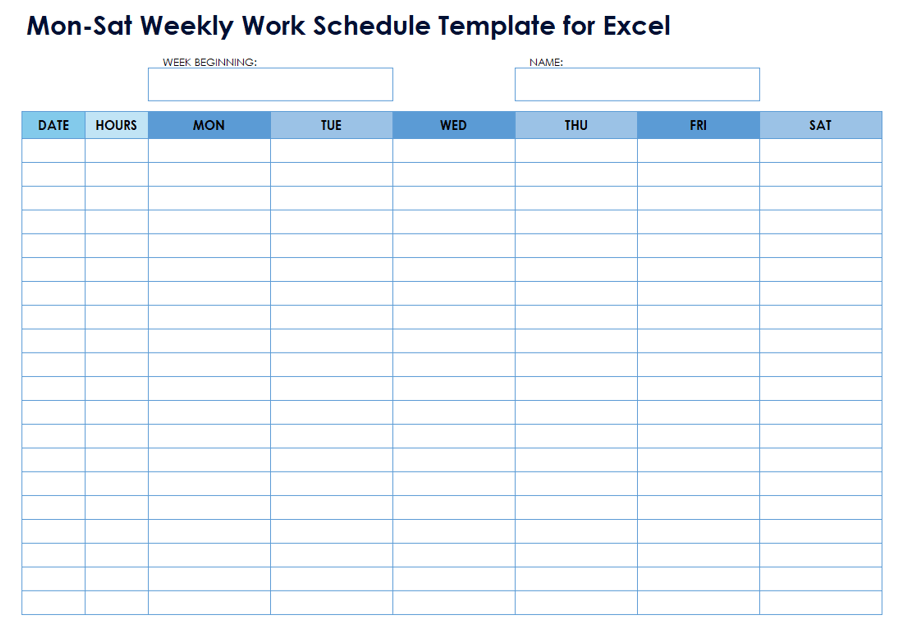
Tracking Employees Schedule Template Google Docs
Google Docs and Google Sheets serve different purposes, even though people sometimes use the terms interchangeably when searching for employee schedule resources. A document is useful for narrative instructions, policies, printed forms, or a simple table, while a spreadsheet is usually better for calculations, filtering, sorting, and structured time tracking.
A tracking employees schedule template google docs document can still be useful when the primary requirement is a printable schedule rather than a calculated timekeeping system. For example, a small team could maintain a weekly table in a document and distribute the final version as a read-only reference.
If the schedule contains many employees and frequent changes, however, a spreadsheet usually provides better structure. Columns can hold dates, start times, end times, roles, locations, and calculated totals without forcing managers to manually update every part of a formatted document.
Google Sheets can also be used alongside a Google Docs instruction page. The document can explain shift codes, approval procedures, scheduling rules, and contact information, while the spreadsheet contains the live schedule.
The most important principle is to choose the tool based on the information being managed. Use a document when presentation and narrative are central; use a spreadsheet when structured data and calculations are central.
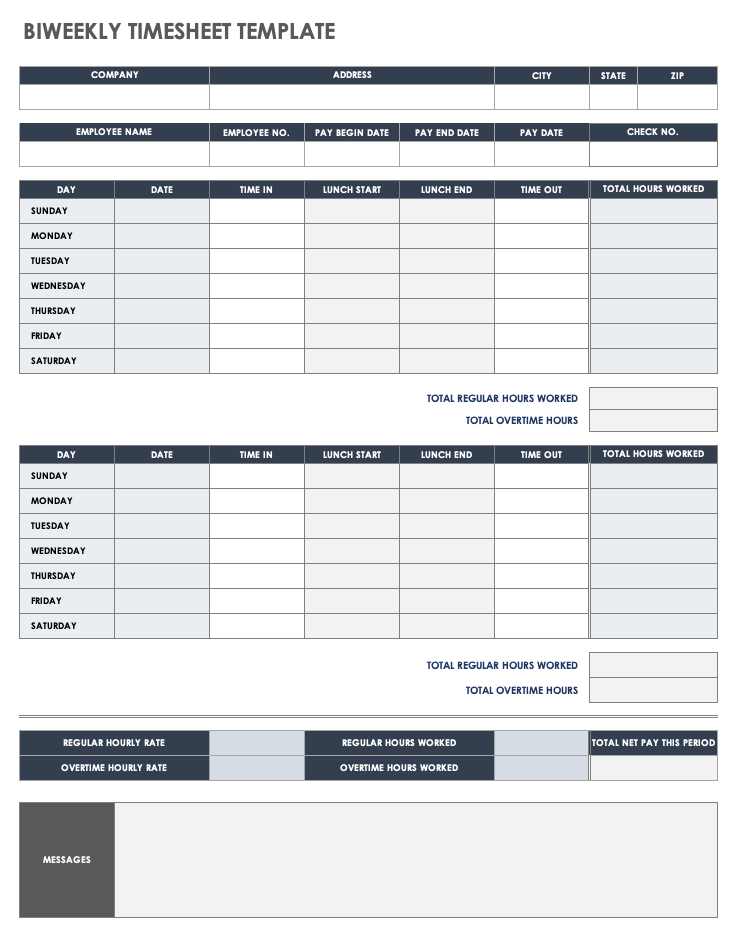
Employees Time Tracking Template
An employees time tracking template should distinguish scheduled time from actual time. The scheduled section answers when someone is expected to work, while the time tracking section records when the work actually occurred.
Typical time fields include date, employee name, clock-in, break start, break end, clock-out, regular hours, overtime hours, and notes. Depending on the organization’s process, approval fields can also record whether the employee and manager have reviewed the entry.
For example, suppose an employee is scheduled for 8:00 AM to 4:30 PM with a 30-minute unpaid break. The planned working time is eight hours. If the employee actually works from 8:05 AM to 4:45 PM with the same break, the actual working time is slightly different. The template can preserve both values rather than overwriting the original schedule.
Time tracking becomes especially useful when it is summarized by week. Managers can see whether individual employees are consistently above or below their planned hours and whether certain days produce recurring differences.
A reliable employees time tracking template should also have a clear rule for corrections. If an employee forgets to record a break or enters the wrong time, the correction should be visible rather than silently replacing the original information. This is important whenever records may later be used to explain payroll or scheduling decisions.
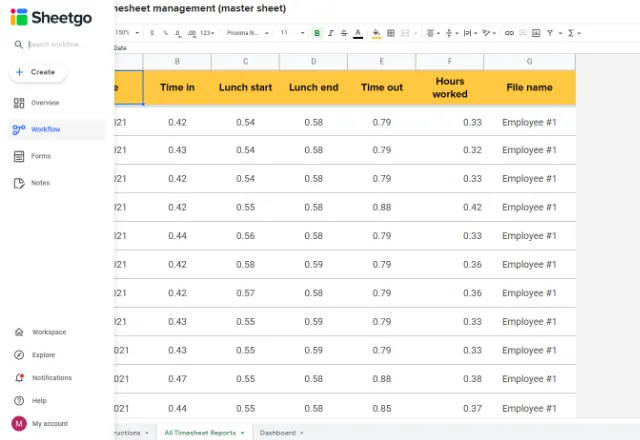
Template for Employee Tracking
A template for employee tracking can be broader than a simple schedule. Depending on the business, managers may need to track attendance, availability, assigned role, location, training, leave, hours, or schedule changes.
The best approach is to separate different types of information rather than placing everything into one enormous table. A core employee list can contain stable information, while weekly schedules can contain changing assignments.
For example, the employee list might contain Employee ID, name, department, role, employment type, and standard availability. The schedule tab can then contain week start date, employee, role, shift start, shift end, break, scheduled hours, and status.
An attendance tab can record presence or absence separately from the schedule. This distinction matters because being scheduled does not automatically mean that an employee attended the shift. Keeping these concepts separate makes later analysis more accurate.
The same principle applies to time off. Rather than deleting an employee from a schedule, use an explicit status such as Vacation or Approved Leave. This preserves the staffing history and makes it easier to explain why coverage was changed.

Schedule Template for Employees
A schedule template for employees should be designed from the reader’s perspective. The person viewing the schedule should be able to identify their shifts quickly without interpreting a complicated system of colors or abbreviations.
Start with the most important information: employee, date, shift, role, and location. If those fields are easy to scan, additional information can be added without reducing usability.
Use consistent formatting for dates and times. For example, decide whether the schedule uses 12-hour or 24-hour time and apply that convention throughout the workbook. Mixing formats can create confusion, particularly for overnight operations.
If color is used, provide a legend. A green cell might represent a normal shift, but the meaning should never depend solely on color. Include text or codes so the schedule remains understandable when printed in grayscale or viewed by someone with a color-vision difference.
A good employee-facing schedule is also stable. If the schedule changes, record the update date or version where appropriate. This reduces confusion when someone has printed an older copy and another employee is viewing the current version online.
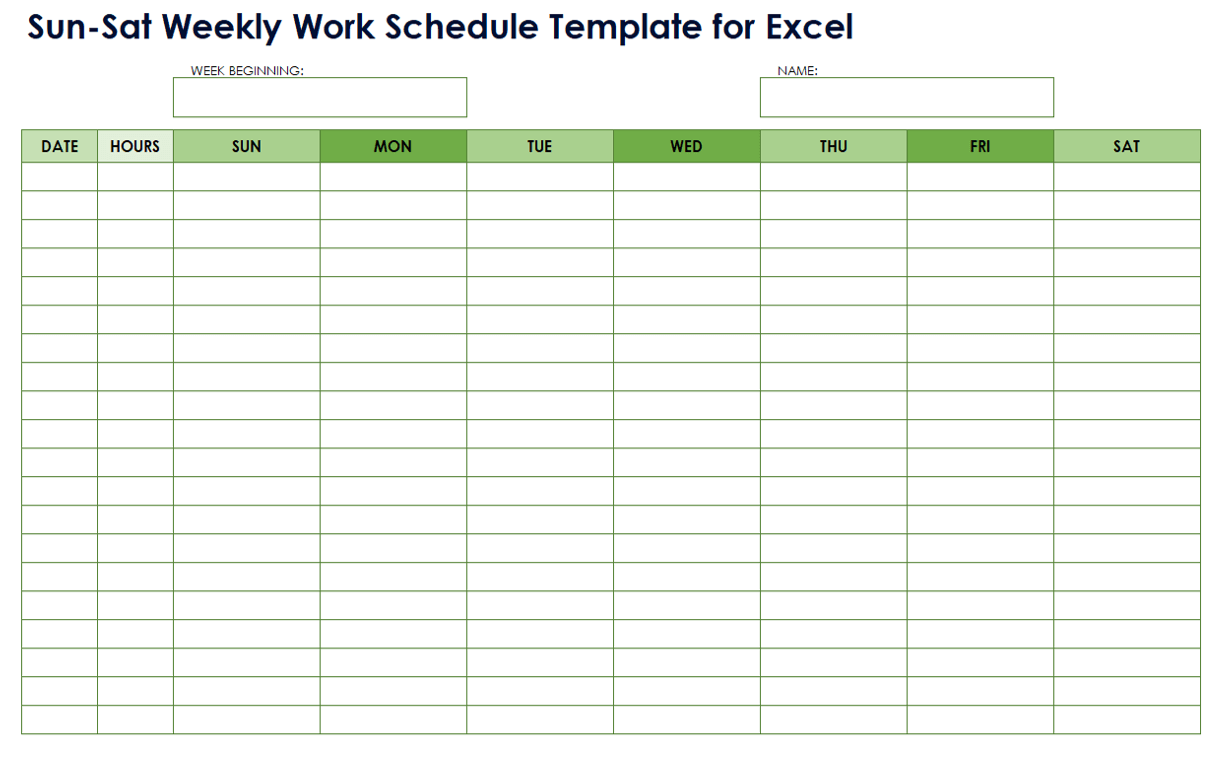
Employee Schedule Template Free
An employee schedule template free option can work extremely well for a small organization with predictable scheduling needs. The important question is whether the template reduces work rather than simply moving the work into another format.
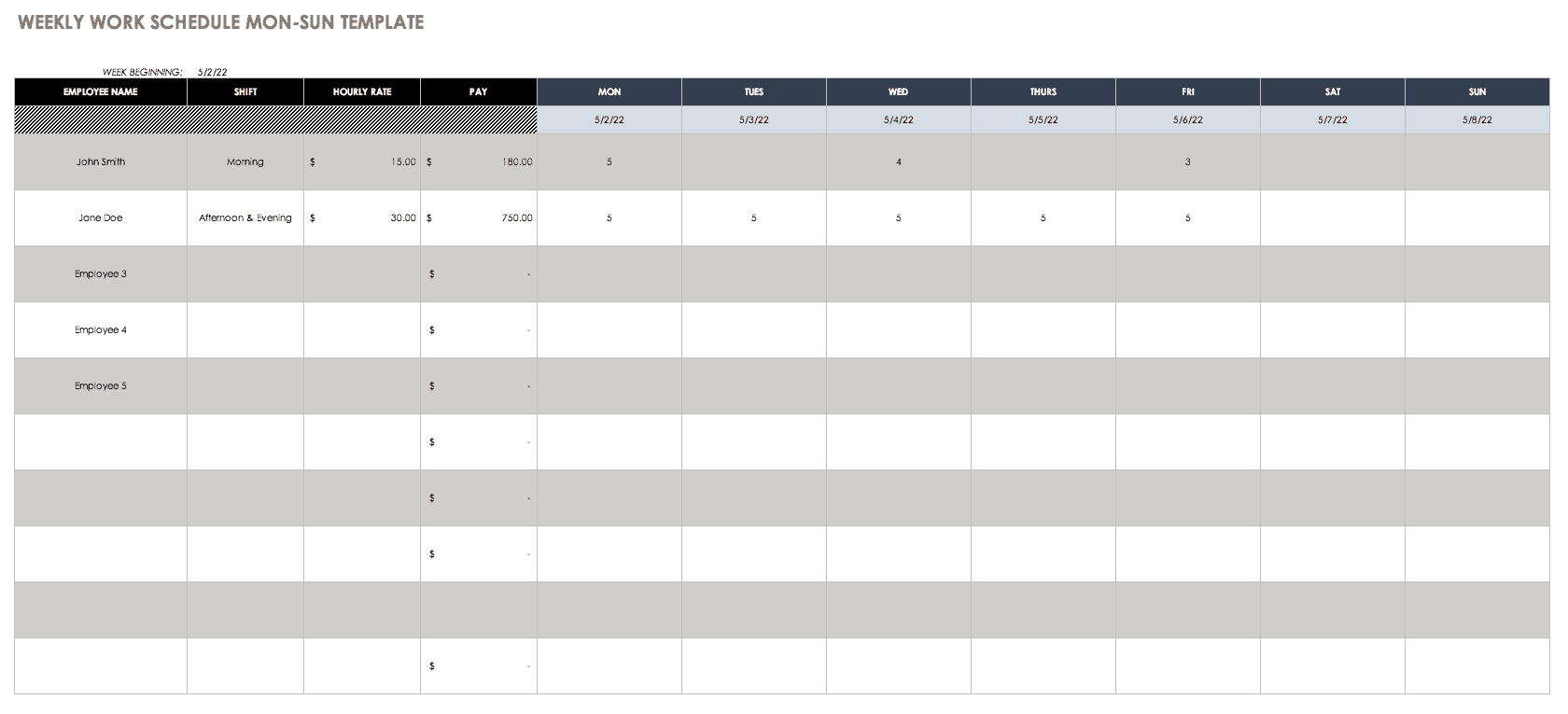
For a team of five to fifteen employees, a weekly grid may be enough. Each employee can have one row, each day can have one cell, and the cell can contain a shift such as “8:00–16:00.” A total-hours column provides a quick weekly check.
For a larger team, consider separating roles and locations. A single employee row may not provide enough context when one person can work different positions across different sites during the same week.
Free templates are also useful for experimentation. Before paying for software or building a complicated internal system, a team can use a basic workbook to determine which information it actually needs. After several scheduling cycles, recurring problems become easier to identify.
The template should evolve based on those problems. If managers repeatedly calculate coverage manually, add a coverage summary. If employees frequently ask about time off, add a visible status field. If overtime is difficult to spot, add a weekly total and exception flag.
Employee Tracking Spreadsheet Template
An employee tracking spreadsheet template is most effective when the workbook has a clear data model. Each row should represent one logical record, and each column should represent one type of information.
For example, an actual-hours table might use one row per employee per date. Columns could include Employee ID, Date, Scheduled Start, Scheduled End, Actual Start, Actual End, Break Minutes, Scheduled Hours, Actual Hours, Variance, and Status.
This structure makes analysis much easier than putting several unrelated pieces of information into one cell. It can also support filtering by employee, department, date, or status.
Managers can calculate variance with a simple concept: actual hours minus scheduled hours. A positive result means more time was worked than planned, while a negative result means less time was worked. The calculation itself is simple; the important part is deciding what threshold requires review.
For example, a five-minute difference may not require action, while a recurring one-hour difference could indicate scheduling, attendance, workload, or timekeeping issues. The spreadsheet should help surface these patterns without automatically treating every difference as a problem.

Employee Schedule Template Free Download
When looking for an employee schedule template free download, start with the format rather than the visual design. A polished screenshot does not necessarily indicate that the underlying workbook is easy to maintain.
Review whether the template has separate fields for employee information, dates, shifts, and totals. If everything is contained in one large formatted area, determine whether adding a new employee or changing a date will affect the formulas.
Test the download with a small sample team before entering production information. Add three or four fictional employees, assign several shifts, enter a day off, and check whether totals behave as expected.
It is also useful to print the schedule. A spreadsheet that looks excellent on a wide monitor may become unreadable on paper. If employees need physical copies, set the print orientation, margins, scaling, and repeated headers before publishing.
Most importantly, retain control over the master version. A free download should become the starting point for your organization’s own controlled template, not an unmanaged file that is repeatedly downloaded, renamed, and edited by different people.

How to Build a Tracking Employees Schedule Template From Scratch
Building your own template is often easier than expected when the process begins with the information required rather than with formatting. Start by writing down the decisions the schedule must support. Examples include who works each shift, whether every role is covered, how many hours each employee receives, and which employees are unavailable.
Create an employee master list first. Give every employee a unique identifier and include only stable information that needs to be reused. Avoid storing unnecessary sensitive information in a general scheduling workbook.
Next, create the schedule table. Include the schedule period, employee, role, location, date, start time, end time, break duration, scheduled hours, and status. For a simple weekly grid, the days can be columns instead, but a row-based data table is usually easier to analyze.
Add validation rules. Use dropdowns for status and role values, and apply consistent date and time formats. Protect formula cells so users do not accidentally overwrite calculations while entering schedule information.
Finally, create a summary area. Useful summaries include total scheduled hours by employee, total staffing by day, open or uncovered shifts, time-off counts, and planned-versus-actual hours. Build the summary only after the underlying schedule data is reliable.
Step-by-Step Workflow for Weekly Scheduling
Begin each scheduling cycle by confirming the period. Enter the week-start date and verify that every day displays the correct calendar date. This simple step prevents an entire week’s schedule from being shifted onto the wrong dates.
Next, collect availability and approved time-off information. Do this before assigning shifts, not after. Scheduling first and discovering unavailable employees later creates unnecessary revisions.
Assign required roles and coverage levels. For each operating period, identify the positions that must be staffed. Then match available employees to those requirements while considering skills, role restrictions, and reasonable workload distribution.
Calculate scheduled hours before publishing. Look for employees who have unusually high or low allocations and check whether the schedule creates potential overtime or coverage gaps. If the business has local labor requirements, those requirements should be reviewed separately rather than assumed from a generic template.
Publish one current version. Tell employees where the authoritative schedule is located and how changes will be communicated. After publication, record significant changes instead of silently altering the schedule when a reliable history is important.

Using Actual Hours to Improve the Schedule
Once the schedule is published, the next step is to capture actual working time consistently. The simplest approach records clock-in and clock-out times for each employee and calculates the resulting hours.
Breaks should be handled explicitly when they affect payable or working time. Do not assume that every shift has the same break pattern unless that is genuinely how the organization operates.
Compare actual hours with scheduled hours at the end of the period. Large differences should be reviewed for context. A longer shift might result from unexpected demand, while a shorter shift might result from an early closure, approved leave, or a schedule correction.
Look for patterns rather than isolated events. One unusual day may mean little, while the same employee regularly working beyond the planned end time could indicate that the schedule does not reflect operational reality.
This comparison also helps improve future schedules. If a particular shift consistently requires additional time, the manager can adjust future staffing rather than repeatedly treating the difference as an exception.

Practical Examples
Example 1: Small Retail Team
Imagine a retail store with eight employees, one manager, two cashiers, and several sales associates. The store operates seven days a week and needs a simple weekly schedule.
The manager could use one row per employee and seven day columns. Each working cell contains the shift time and role, while an additional total-hours column calculates the weekly allocation.
A separate availability tab records recurring availability and approved time off. The manager uses that information before assigning shifts, reducing the risk of scheduling someone during a known unavailable period.
The summary area can show the number of employees scheduled each day and total scheduled hours. If Saturday is consistently understaffed while Tuesday has excess capacity, the manager can adjust the next week’s assignments.
This example does not require a complex workforce-management system. A carefully structured spreadsheet can provide the necessary visibility while the team remains small.
Example 2: Restaurant With Multiple Shifts
A restaurant may need opening, daytime, evening, and closing coverage. The schedule should therefore identify both employee and role because having the correct number of people is not enough if the required positions are missing.
The manager can create separate shift codes such as OPEN, MID, CLOSE, and OFF, with a lookup table containing the standard start and finish times for each code.
Employees can then be assigned a code rather than manually typing times into every cell. The workbook can calculate hours from the shift definition.
A role summary can count servers, cooks, hosts, and supervisors for each operating period. This makes coverage gaps visible before the schedule is published.
The manager should still review exceptions manually because a formula can identify the number of people assigned but cannot necessarily determine whether those people have the right skills or experience for a particular shift.
Example 3: Office Team
An office team may not need detailed shift scheduling but may still need to track working days, remote days, training, leave, and meetings.
A weekly calendar can show each employee’s primary work location or availability status. A separate time tracking sheet can be used only when the organization actually needs detailed hour records.
This prevents overengineering. If the purpose is simply to coordinate attendance and coverage, a complex clock-in system may add unnecessary administrative work.
The same workbook can contain a leave calendar and a team overview. Managers can quickly see who is away and whether enough people are available for important meetings or operational tasks.
The design should always follow the business process. Templates are tools, not objectives.
Common Mistakes to Avoid
One common mistake is mixing scheduled and actual hours. If the original schedule is overwritten when someone works late, the organization loses the information needed to measure variance. Keep the two concepts separate when comparison matters.
Another mistake is relying entirely on color. A schedule that communicates meaning only through cell colors can become difficult to understand when printed or viewed by users with different visual needs. Use text labels or codes alongside colors.
Another problem is inconsistent employee names. Typing “John Smith,” “J. Smith,” and “John S.” in different parts of a workbook can create duplicate records. Use a controlled employee list and dropdown selection wherever possible.
Overly complicated formulas are another risk. A template should be maintainable by the people who actually use it. If a calculation is difficult to explain, document it or simplify it where practical.
Finally, avoid treating a spreadsheet as an unlimited system. Once the organization needs real-time notifications, automated shift swaps, complex availability rules, multiple locations, audit trails, or large-scale workforce planning, specialized scheduling software may become more appropriate.
Best Practices for Accuracy and Privacy
Use a consistent naming system for employees, departments, locations, and shift types. Consistency improves filtering and reduces errors when data is summarized.
Keep formula cells protected where the spreadsheet platform supports protection. Employees who enter time should not normally need to modify calculations.
Maintain a master template and create controlled copies for each scheduling period. This preserves the original structure and makes it easier to restore the workbook if an editing mistake occurs.
Limit access to information that people do not need. A scheduling workbook should contain the minimum information necessary for its purpose. Avoid placing sensitive personal information into a broadly shared schedule merely because there is an empty column available.
Back up important records according to the organization’s retention practices. If schedules may be needed to explain payroll, attendance, or operational decisions, do not rely on a single file stored on one computer.
Practical Solution: Build a Simple Tracking Employees Schedule Template
The most practical solution for many small and medium-sized teams is a workbook with five core tabs: Employees, Availability, Schedule, Time Tracking, and Summary. This structure provides enough separation to keep the data organized without turning the workbook into an unnecessarily complicated application.
Start with the Employees tab. Give each person a unique employee ID and record their name, department, primary role, and other non-sensitive scheduling information that is genuinely required. Use this sheet as the controlled source for employee names throughout the workbook.
Use the Availability tab to record recurring availability and approved exceptions. Keep availability separate from the schedule because availability represents a constraint, while the schedule represents the manager’s final assignment.
The Schedule tab should contain the actual plan. Include the scheduling period, employee, role, location, start time, end time, break, scheduled hours, and status. Add formulas only after the manual structure works correctly.
The Time Tracking tab records what happened. Keep scheduled and actual times in separate fields so that the organization can compare them later. Include a correction or notes field when adjustments need to be explained.
The Summary tab should answer management questions rather than simply display more data. Show scheduled hours by employee, scheduled staffing by day, actual hours, major variances, and unresolved coverage issues. A useful dashboard is one that helps a manager decide what to do next.
Before using the template with real employee information, test it with fictional records. Include normal shifts, split shifts if relevant, days off, approved leave, a missing time entry, and an overnight shift if the organization operates after midnight.
After testing, protect formulas, establish the official file location, define who can edit the schedule, and communicate how employees will be notified about changes. The template then becomes a repeatable workflow rather than a one-time spreadsheet.
Reference Examples
The following examples are visual references for common spreadsheet and employee scheduling formats. They illustrate the kinds of layouts that can be adapted for different tracking and scheduling requirements.
tracking employees schedule template google sheets
Source: Sheetgo
tracking employees schedule template excel
Source: Smartsheet
tracking employees schedule template free
Source: Smartsheet
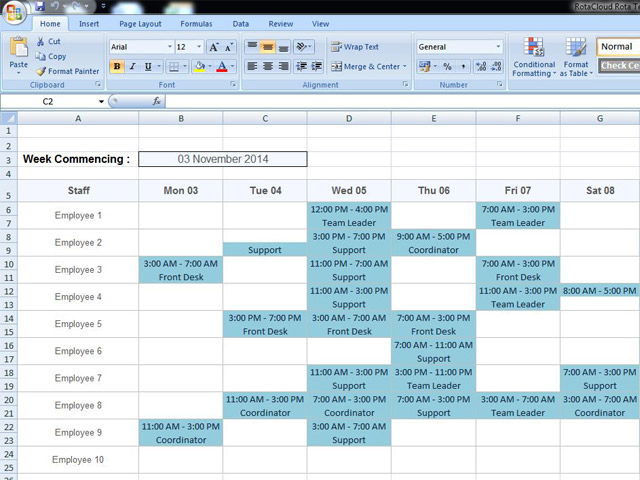
tracking employees schedule template free download
Source: RotaCloud
tracking employees schedule template excel free
Source: Smartsheet
tracking employees schedule template google docs
Source: Smartsheet
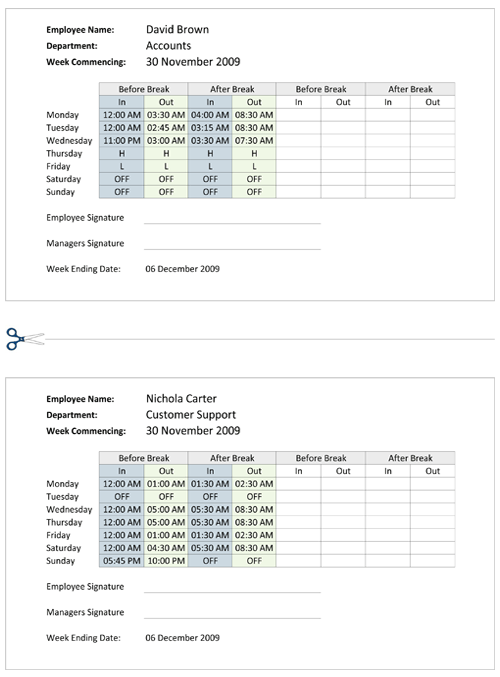
employees time tracking template
Source: Sheetgo
template for employee tracking
Source: Spreadsheet123
schedule template for employees
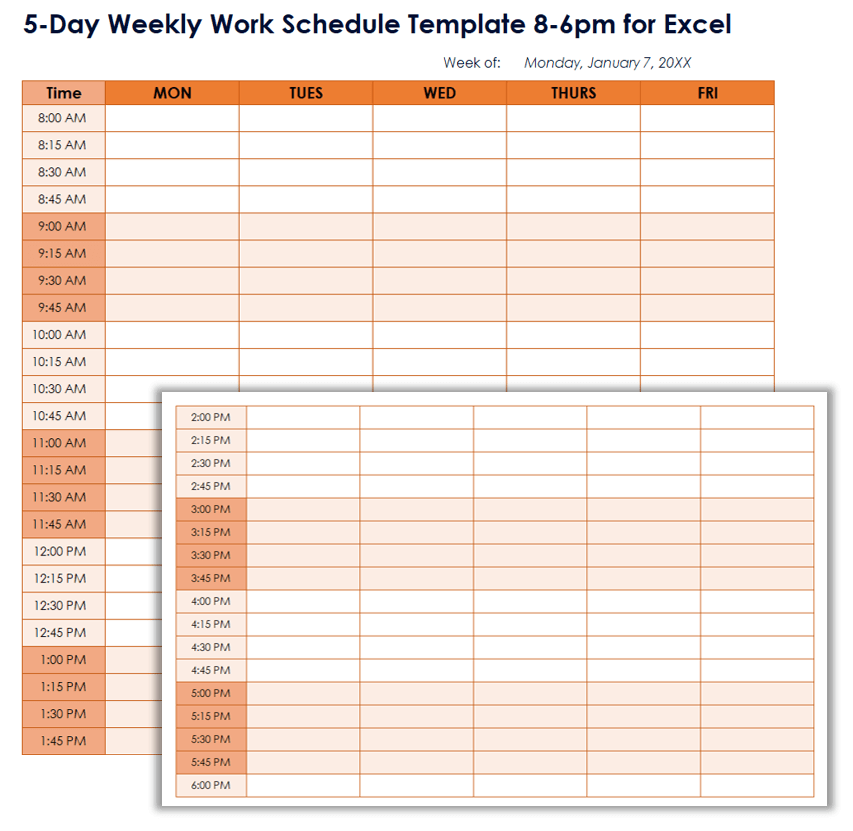
Source: Smartsheet
employee schedule template free
Source: RotaCloud
employee tracking spreadsheet template
Source: Sheetgo
employee schedule template free download
Source: Smartsheet
Frequently Asked Questions
What is the main purpose of a tracking employees schedule template?
Its main purpose is to organize planned employee work while making important scheduling information easier to monitor. Depending on the design, it can also compare scheduled hours with actual hours, track availability, record time off, and identify staffing gaps.
Should I use Excel or Google Sheets?
Use Excel when offline editing, advanced formulas, printing, or an existing Microsoft-based workflow is important. Use Google Sheets when several authorized people need to access and update a shared schedule. The better option is the one that fits the team’s existing workflow and control requirements.
Can a free employee schedule template calculate hours?
Yes. Many spreadsheet templates can calculate hours from start and end times. However, test the formulas with your actual scheduling patterns, especially breaks, overnight shifts, split shifts, and other unusual cases before relying on the calculations.
What information should an employee schedule contain?
At minimum, include the employee, date or workday, shift time, and relevant role. Depending on the business, you may also need location, break information, scheduled hours, status, availability, time off, or notes.
What is the difference between an employee schedule and a timesheet?
An employee schedule describes planned work. A timesheet records actual work time. Keeping both allows managers to compare what was expected with what actually happened.
How often should an employee schedule be updated?
Update it according to the organization’s scheduling cycle. Many teams publish weekly schedules, while others use daily, biweekly, or monthly planning. Significant changes should be communicated promptly and, where necessary, recorded so the current version is clear.
How can I prevent employees from accidentally changing formulas?
Separate input cells from formula cells, use data validation for controlled fields, and protect calculation areas where the spreadsheet platform allows it. Give employees only the editing access they need.
When should a business move beyond spreadsheets?
A spreadsheet may stop being practical when the organization has many locations, frequent shift changes, complicated availability rules, automated notifications, shift swaps, extensive approval workflows, or large volumes of time records. At that point, dedicated scheduling or workforce-management software may provide stronger controls.
Can the same template be used for every type of employee?
Not always. Office employees, retail staff, restaurant workers, healthcare teams, field workers, and 24-hour operations can have very different scheduling requirements. Start with a common structure and customize the fields that reflect the actual work environment.
Conclusion
A well-designed tracking employees schedule template can provide much more than a weekly list of shifts. It can become a practical operating system for planning coverage, organizing employee assignments, monitoring scheduled hours, recording actual time, reviewing variances, and communicating changes clearly. Whether you choose Excel, Google Sheets, or another format, the strongest template is simple enough to maintain, detailed enough to answer important operational questions, and structured enough to preserve reliable information over time. Start with the essential fields, test the calculations, separate planned time from actual time, protect important formulas, and improve the workbook only when a real scheduling problem justifies another feature. With that approach, a tracking employees schedule template becomes a dependable tool for making employee scheduling more organized, transparent, and manageable.
